A free desktop canvas for images, video, sound and 3D
One idea.Endless directions.
Nodelizer is a desktop app where every step of your work is a node. Write a prompt, try a few models at once and pass the best result on to the next step. The app is free, and models run on your own account at the AI providers you choose, at their prices.
Coming soon to macOS, Windows and Linux. Free for individuals, education and small teams.
Image
Video
3D
Draw
Remove Background
Speech
Music
Sound Effects
Extraction
Multiview
Turnaround Sheet
Re-Angle
Props Variation
Extend Video
Upscale
Compare
Rig
Retopology
Model Edit
Composition
Frames
Transcribe
Blender
List
Router
Reusable text
Note
Image
Video
3D
Draw
Remove Background
Speech
Music
Sound Effects
Extraction
Multiview
Turnaround Sheet
Re-Angle
Props Variation
Extend Video
Upscale
Compare
Rig
Retopology
Model Edit
Composition
Frames
Transcribe
Blender
List
Router
Reusable text
Note
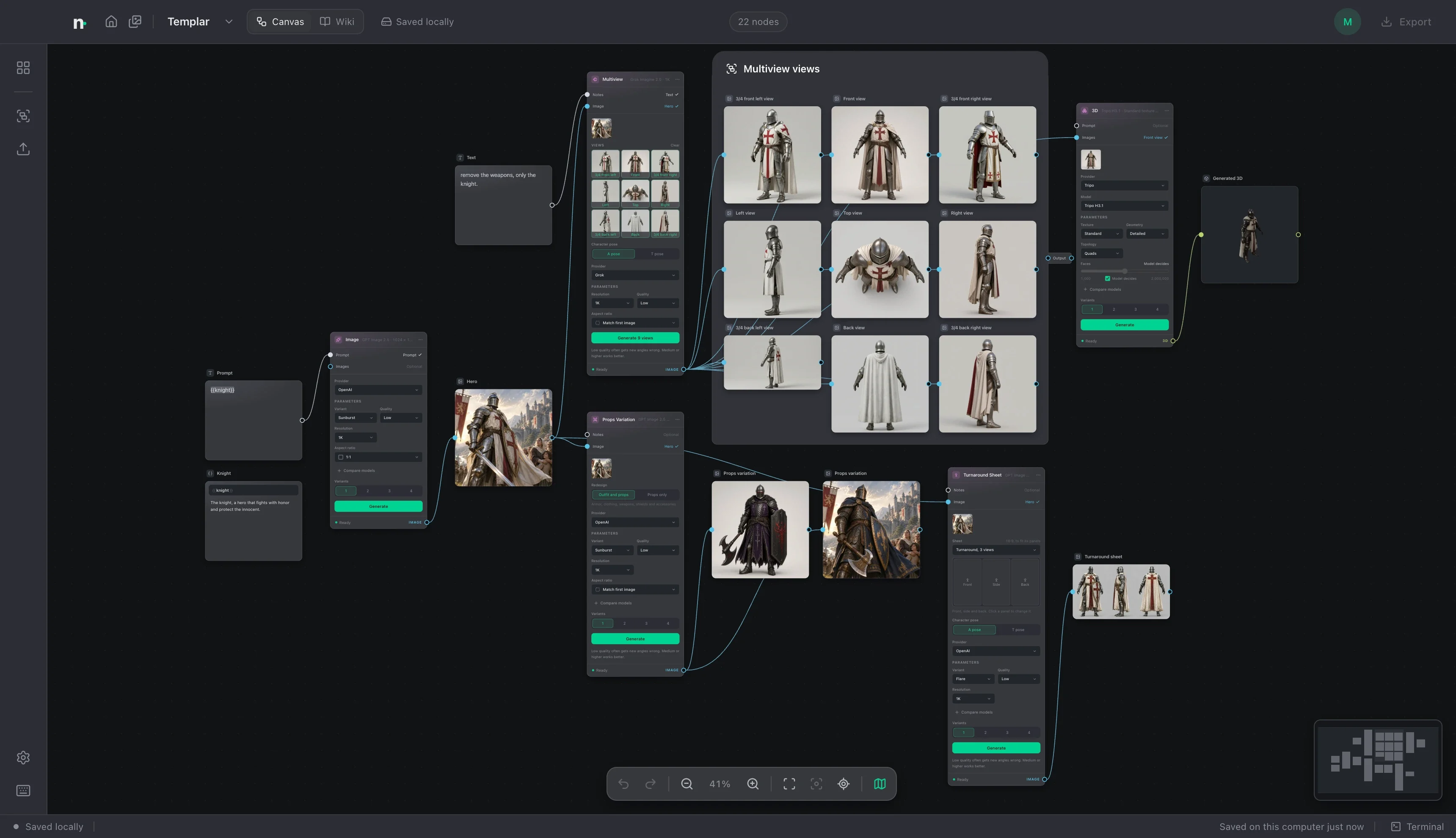
The board
This is one project.
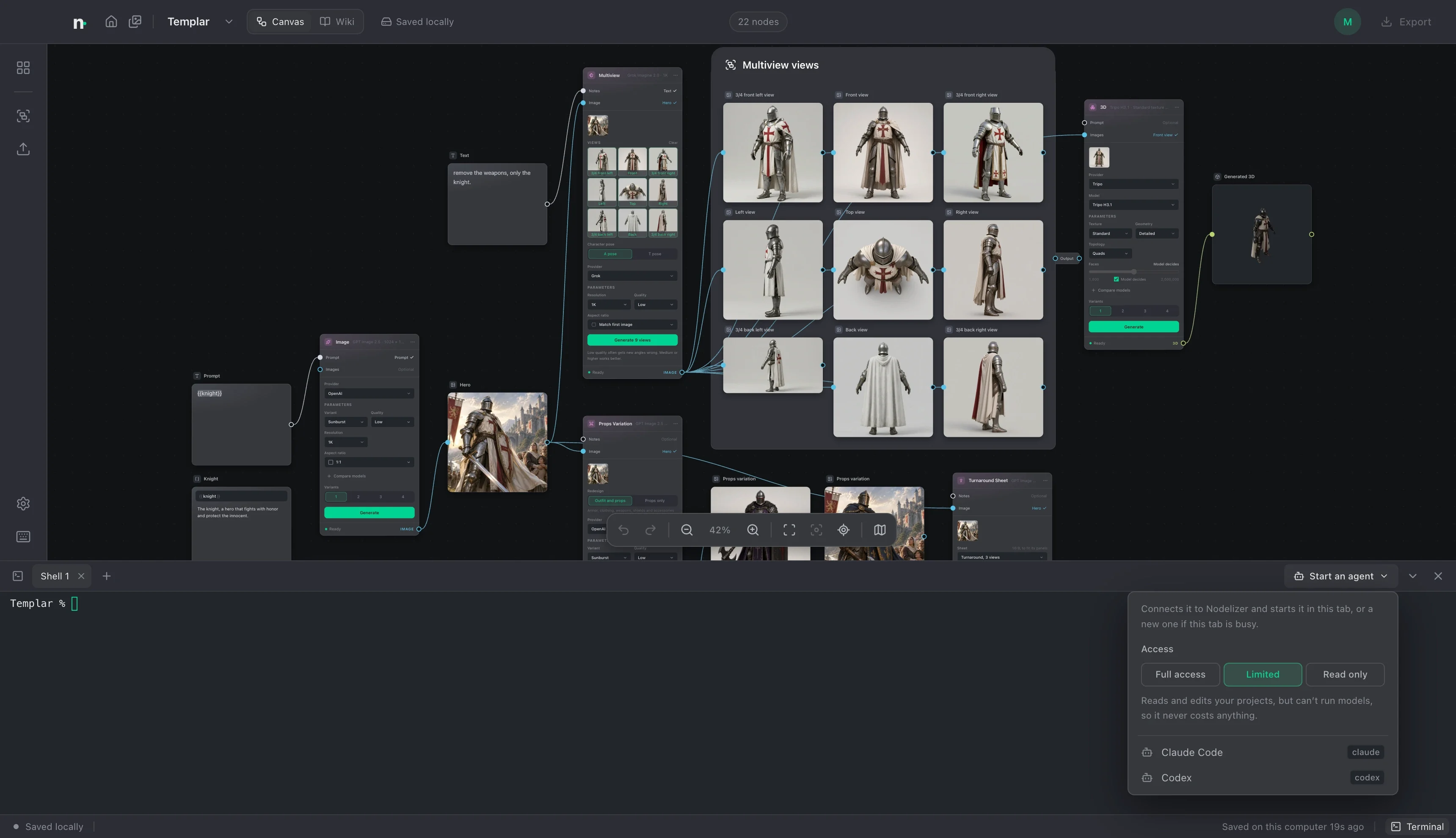
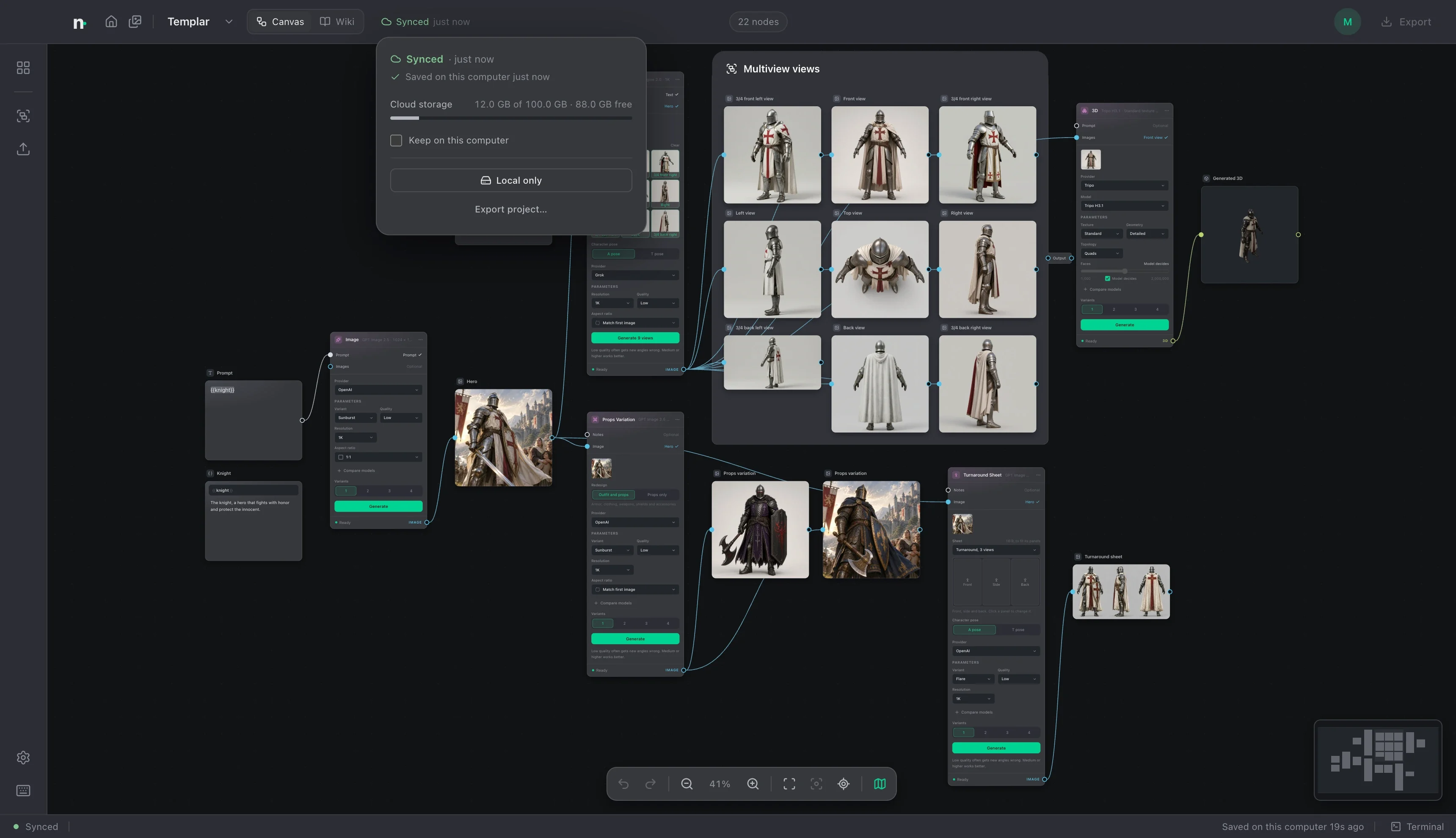
A knight, from a single sentence to a 3D model. What you see is a real board from the app, not a drawing of one. Keep scrolling and we will walk across it.
Step 1 of 5
It starts with a sentence.
The prompt only says {{knight}}. The Reusable text node below it describes the knight, so every prompt that needs the knight says the same thing. The Image node turns it into the first picture.
Step 2 of 5
Walk all the way around.
Multiview makes the back, the sides and the 3/4 angles of whatever is in your image. Each view lands as its own image, ready to feed the next node.
Step 3 of 5
New gear, same knight.
Props Variation swaps in different armor, a different shield and a different weapon. Every variant goes its own way, and it is still the same knight.
Step 4 of 5
A model sheet in one go.
Turnaround Sheet lays the character out the way an artist would: front, side and back in one image, with close ups if you ask for them.
Step 5 of 5
Then make it solid.
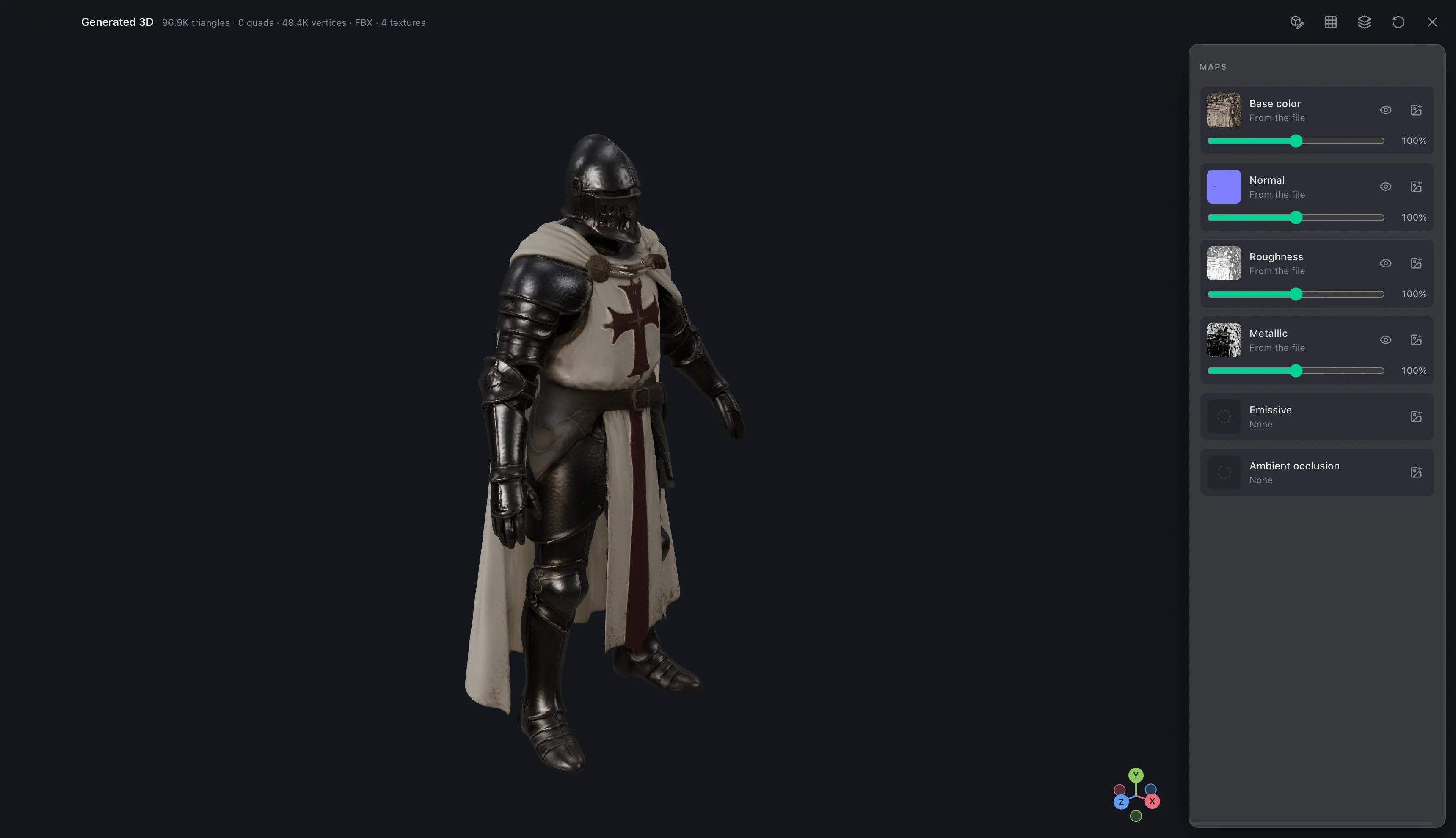
The front view goes into a 3D node and comes back as a textured model. From there you can rig it, clean up its mesh or open it in Blender.
Providers
Your account.Their prices.
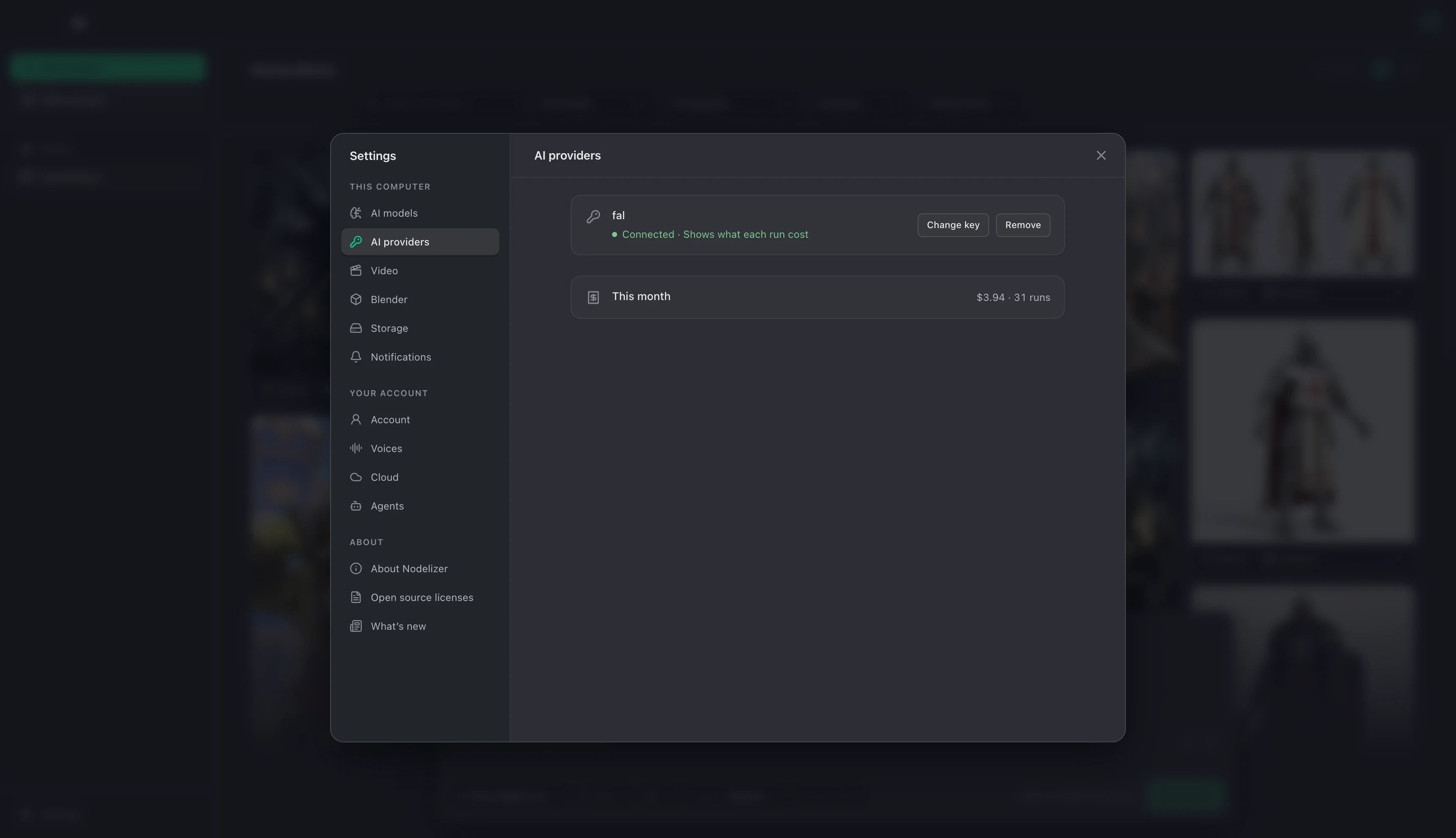
Nodelizer doesn’t sell generations. Connect your own account at an AI provider, and every run goes from your computer straight to it, billed by the provider at its own prices. We add nothing on top.
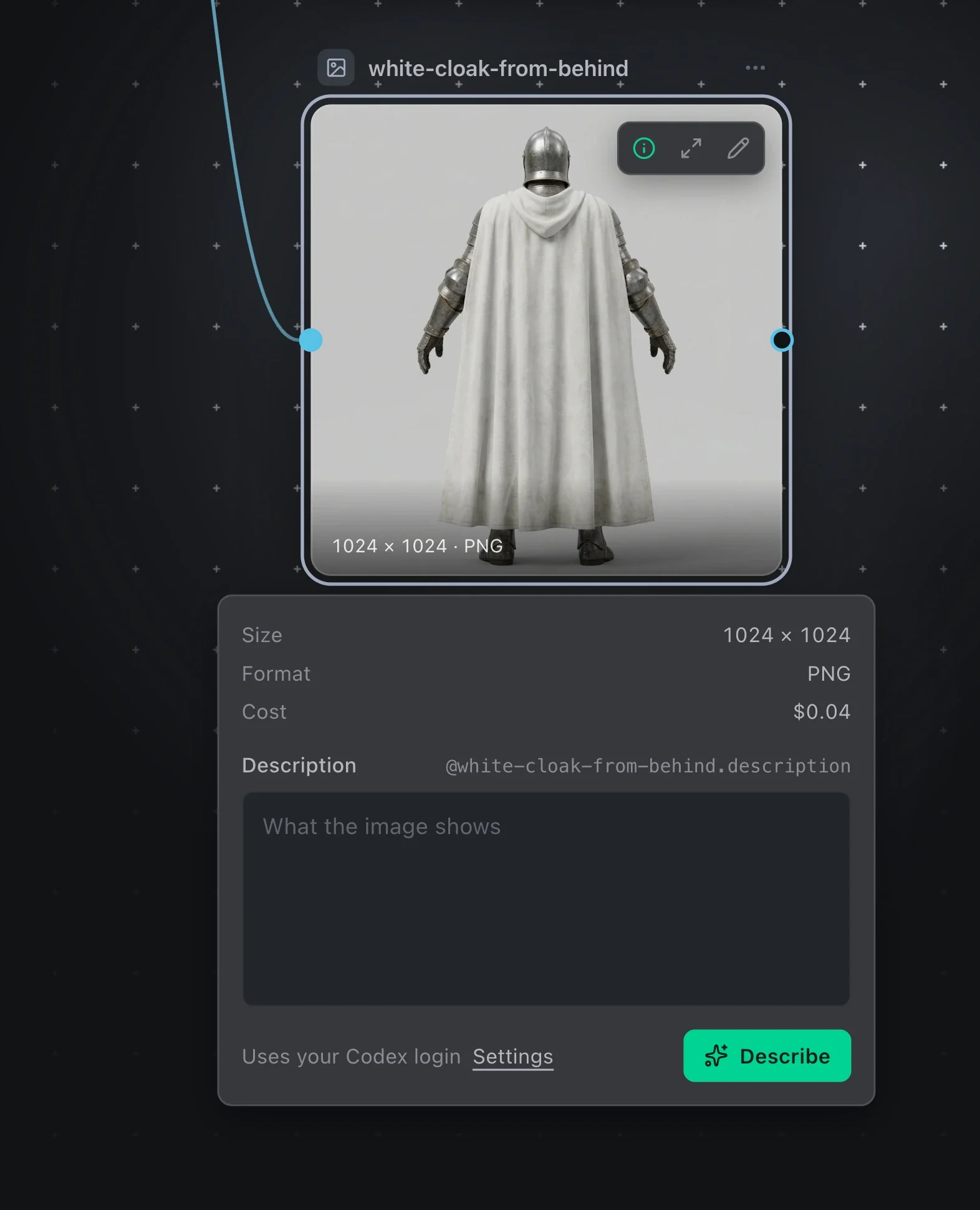
Your key is kept encrypted on your computer and never sent to us. When it can read billing, each result shows what the run cost, and Settings shows the month’s total.
fal
Images, video, sound and 3D
Higgsfield
Video
Tripo
3D
Generate
Not every ideaneeds a board.
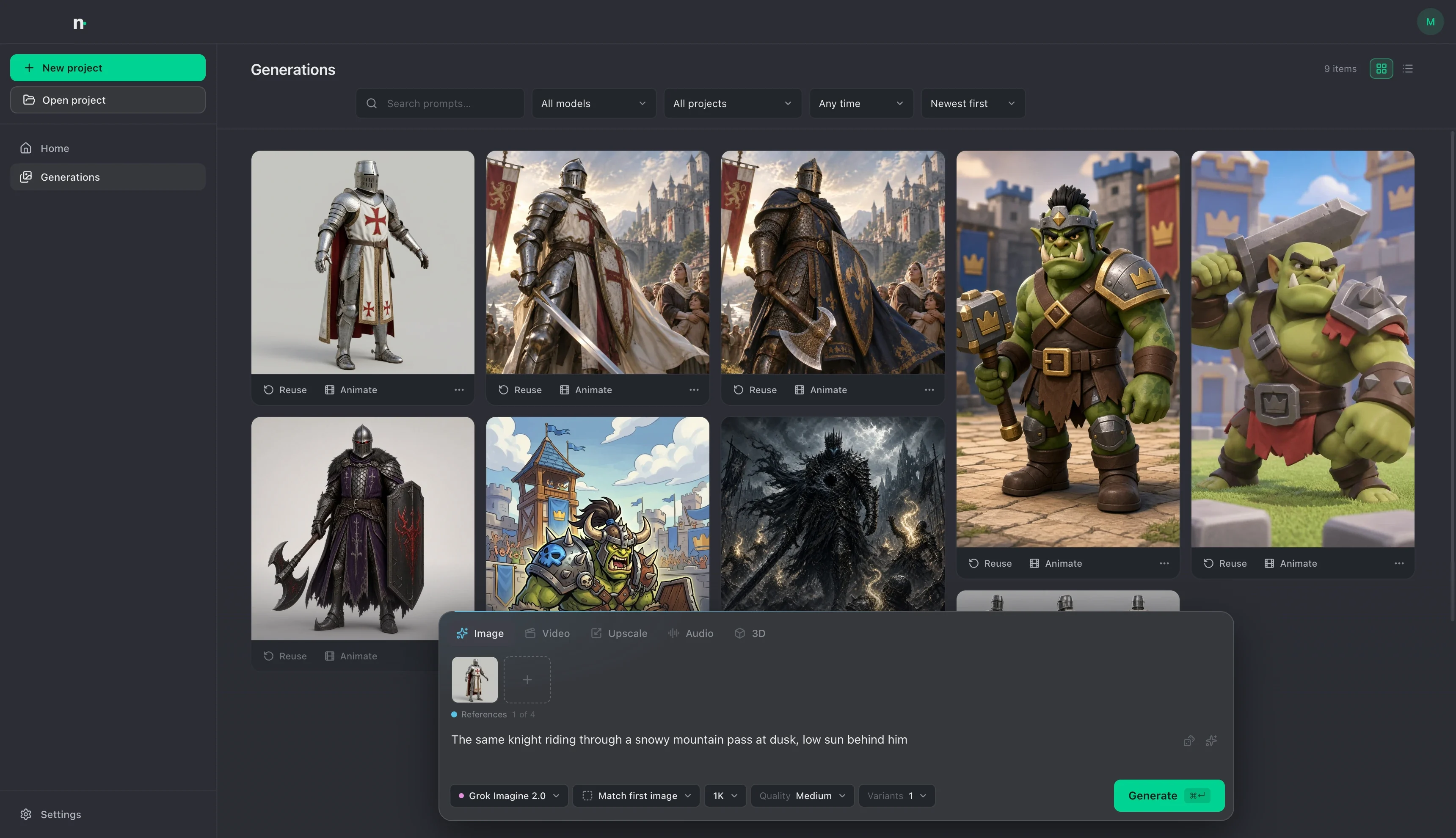
Sometimes you want a picture, not a project. Open Generations, pick Image, Video, Audio, Upscale or 3D, write what you have in mind and press Generate. Results stack up in a feed, each one keeping what it was made from.
Keep going from any result
Reuse puts its prompt and settings back in the bar. Use it as a reference, animate it, upscale it or remove its background, all from the feed.
Open it on a canvas
When an idea outgrows the feed, Open in canvas lays out a new board with the result and everything it was made from, already wired up.
On all your computers
With Sync, your generations follow you between computers, along with what each result was made from, so you can pick up on another one where you stopped.
Compare models
Same prompt.Four models.
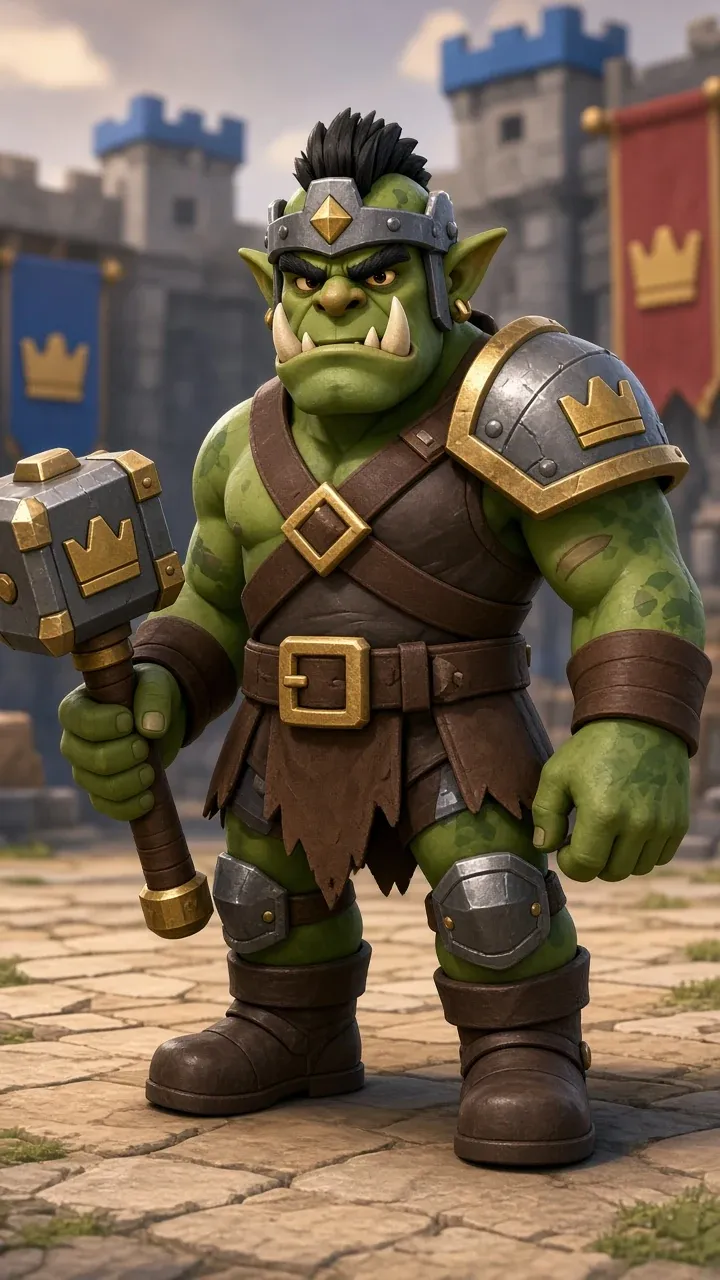
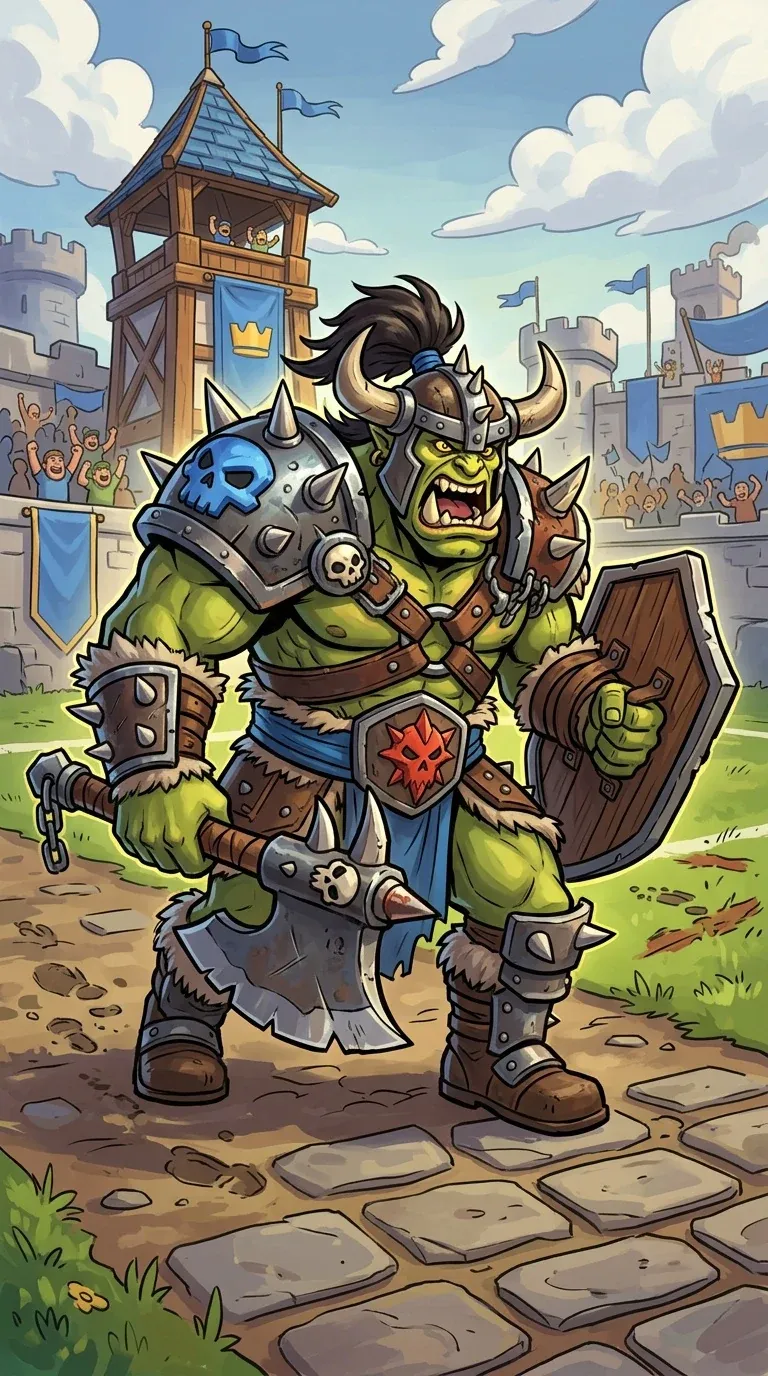
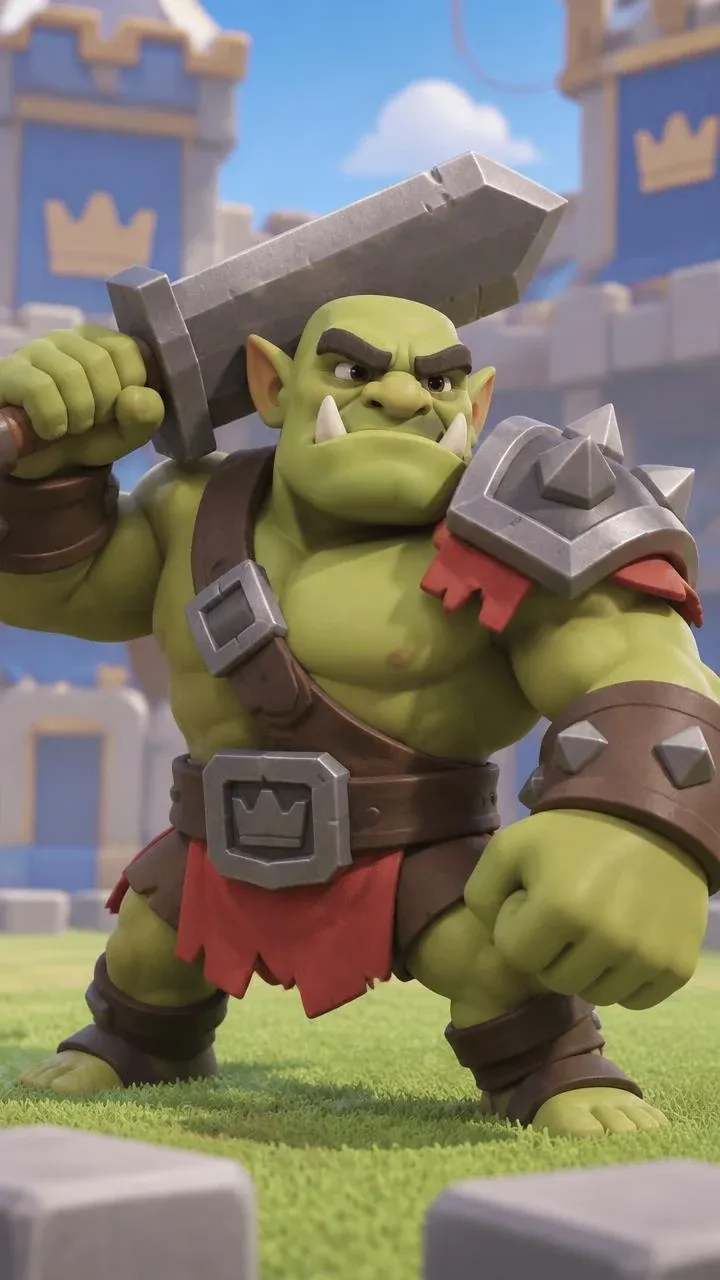
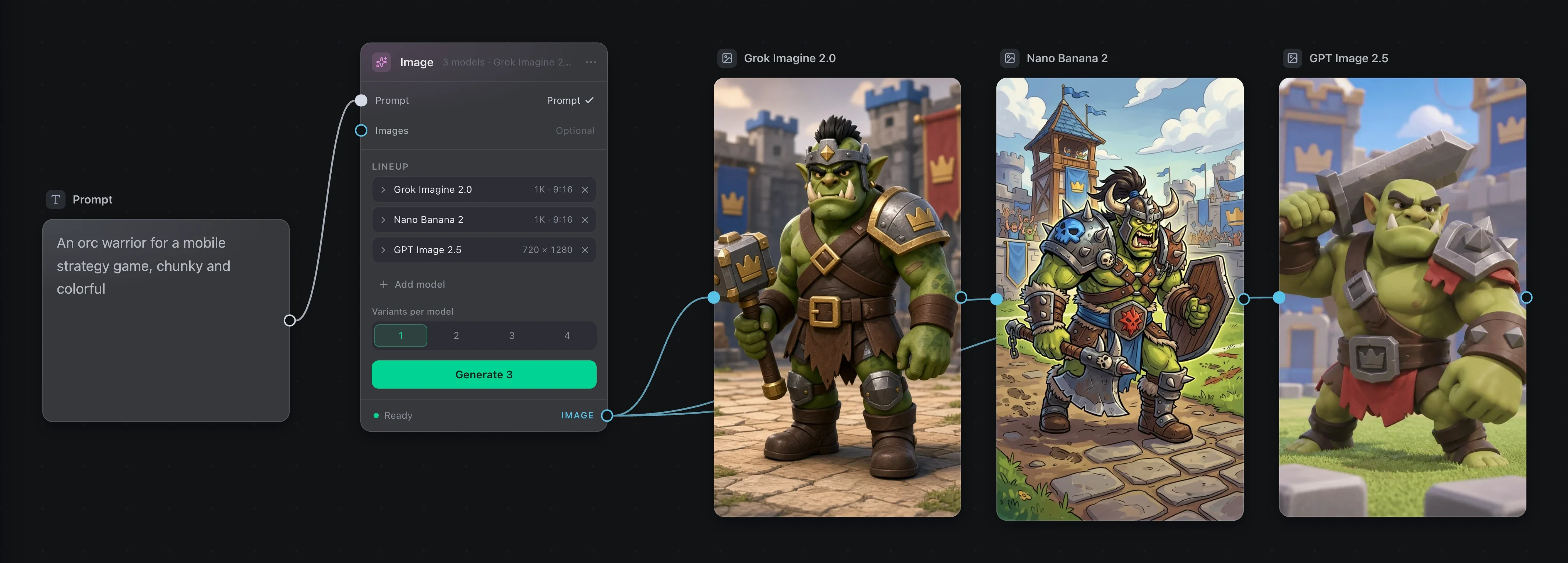
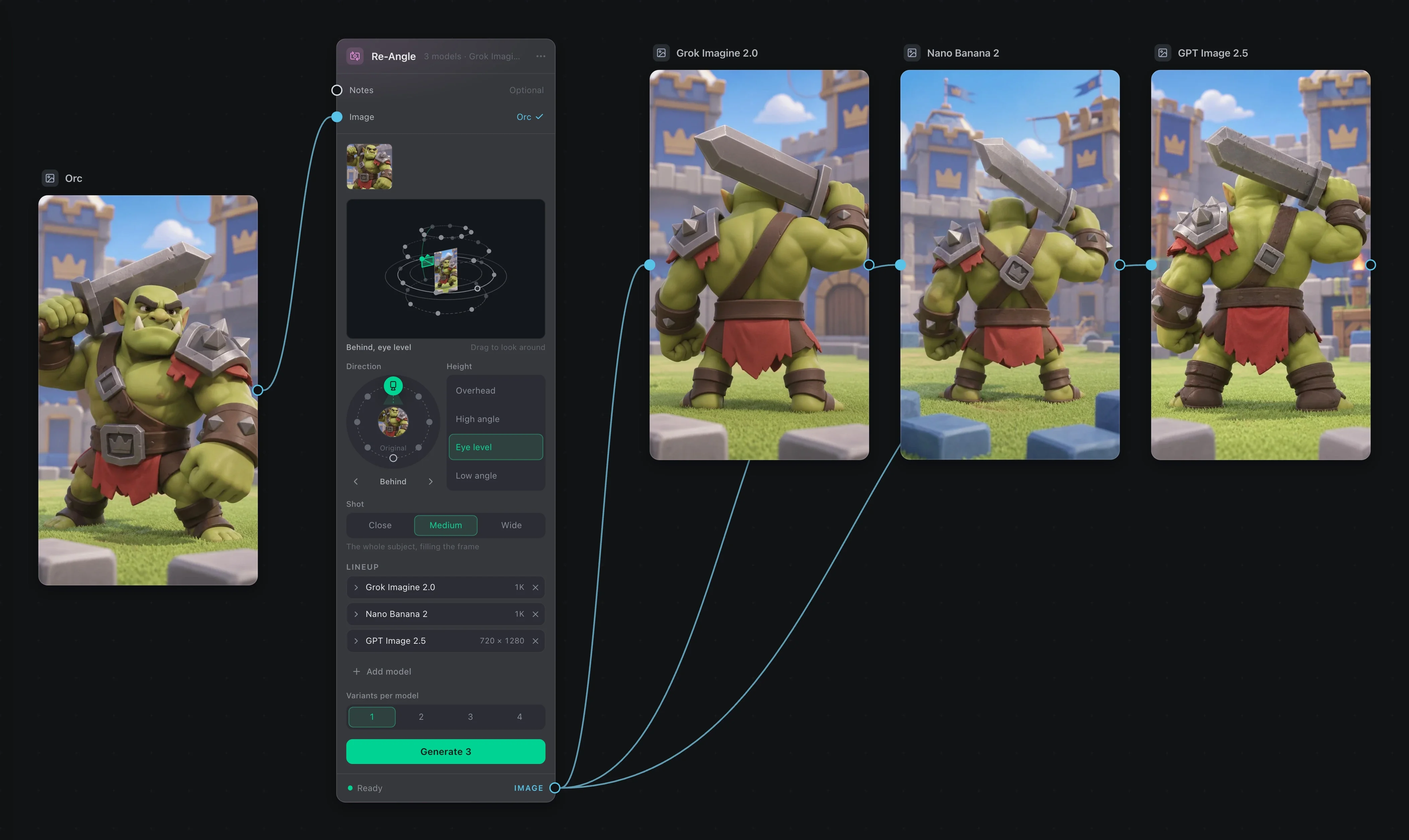
Not sure which model fits the job? Add up to four to one node and press Generate once. Every result lands on the board named after the model that made it.
Grok Imagine 2.0Nano Banana 2GPT Image 2.5
That is the node that made them. One press, three jobs, three results.
The list moves as models come and go. The board stays the same.
On your computer
Plenty runs on yourcomputer, for free.
Cutting out objects, removing backgrounds, saving frames, finding the words in a sound, editing a 3D model and cutting a video together all happen on your computer. They cost nothing and need no provider.
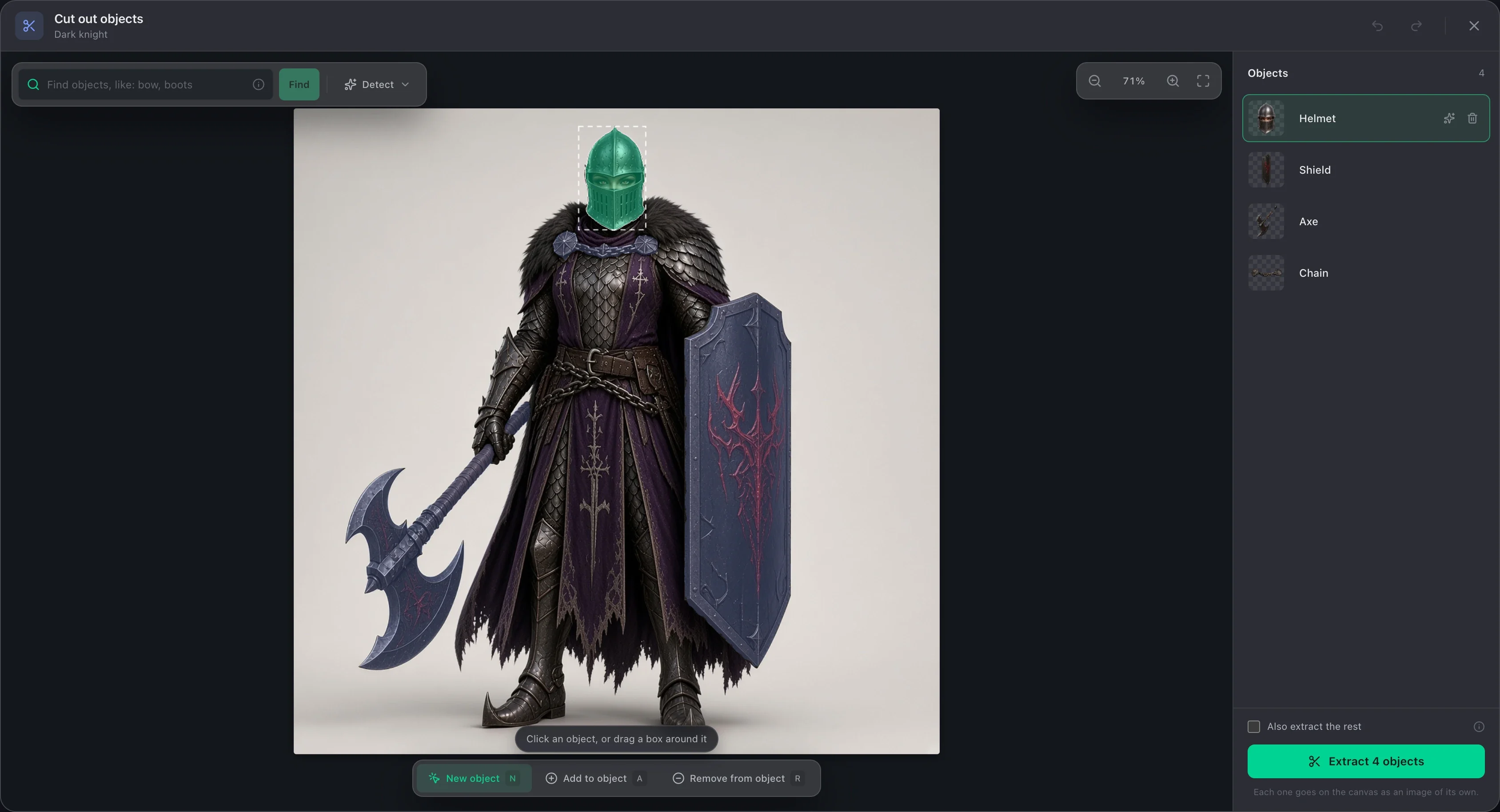
Helmet
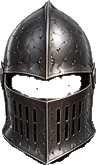
Shield
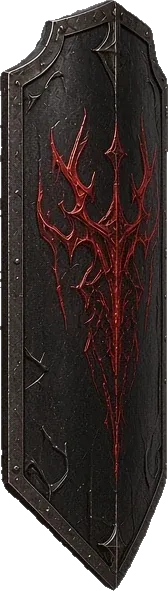
Axe
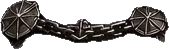
Chain
Extraction
Click the helmet, the shield or the axe and it comes out clean, as its own image. In a video it follows the object through the clip.
Remove Background
Sharp edges or soft ones for hair, fur and smoke. Paint a mark where it picked wrong.
Frames
Save any frames of a clip as images, at the clip’s own size.
Transcribe
The words in a sound, with when each one is said or sung.
Model Edit
Move, scale and reshape a 3D model in its own viewport, down to its vertices.
Composition
Put clips, pictures and sounds on a timeline and render one video.
Video, sound and 3D
Pictures areonly the start.
The same board makes clips, voices, songs, sound effects and 3D models. A result of one kind plugs into a node of another, so an image can become a clip, and the clip can get its sound.
Video
Make a clip, then keep it going.
Start from a prompt, a first and last frame, or a set of references. Extend Video carries a clip on past its end, as the same shot or as a cut to a new angle.
Four seconds from a prompt, seven more from Extend Video
Sound
Voices, songs and noises.
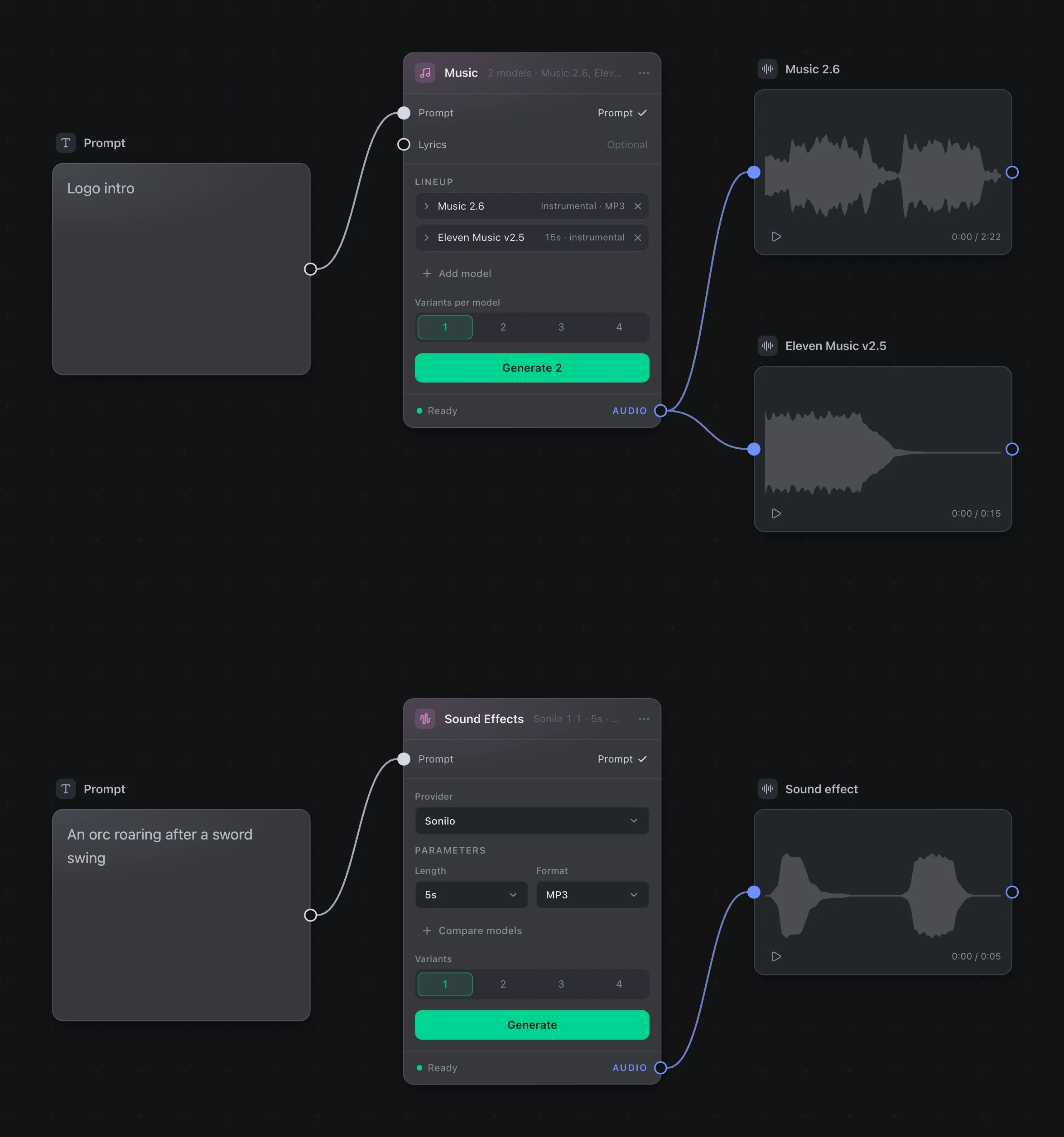
Speech reads your text aloud, in a preset voice or your own, made from a recording. Music writes a song from a prompt and your lyrics. Sound Effects makes the roar, and Video to Sound scores a silent clip.
3D
A model you can turn in your hands.
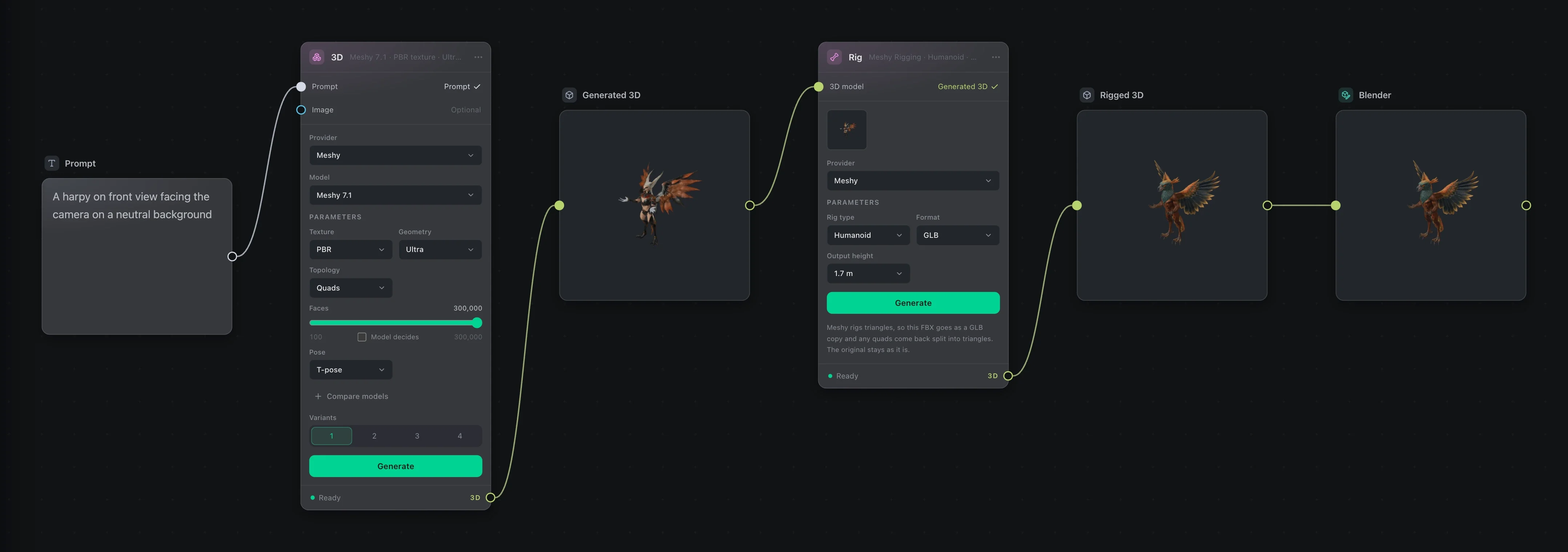
Make a model from a prompt or from an image. Look at it from every side, check its texture maps one by one, then retopologize it, split it into parts or give it a skeleton.
Re-Angle
Same scene, new camera.
Drag the camera around the subject and pick how high it sits. You get the scene from there, with nothing in it moved.
Compare
See what changed.
Put two images under one divider and drag it. It works for an upscale, an edit or a redesign like this one. Go on, drag it.
BeforeAfter
Blender
Finish it in Blender.
Send a model to Blender and keep working there. Save, and the node on your board updates. Nodelizer downloads its own copy of Blender the first time, so there is nothing to set up.
Prompts
Write it once.Use it everywhere.
A long project repeats itself: the same character, the same look, the same notes. Nodelizer gives prompts three ways to refer to things, so you never paste the same paragraph twice.
{{knight}} in the pose of @hero, in the world of [[Dark Knight]]
{{knight}}
Reusable text
Keep a character or a style under a name. Any prompt that writes the name gets the full text, and changing it once changes it everywhere.
@hero
Mentions
Point at a connected image, clip or sound by the label you gave its node. No more counting which one was image 2.
[[Dark Knight]]
Pages
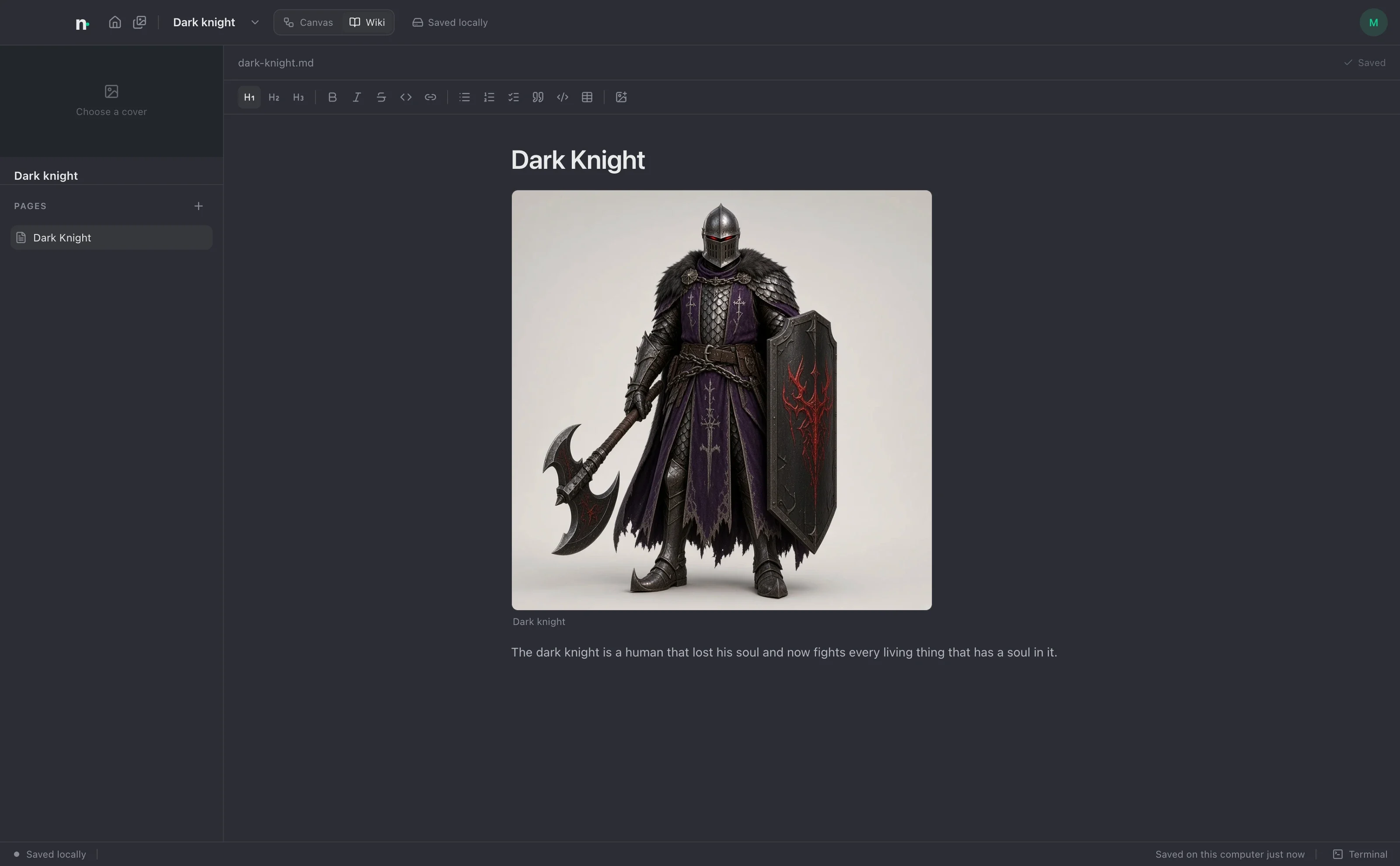
Pull a page of the project wiki into a prompt, or only one section of it. Rename the page and the prompts follow.
Lists
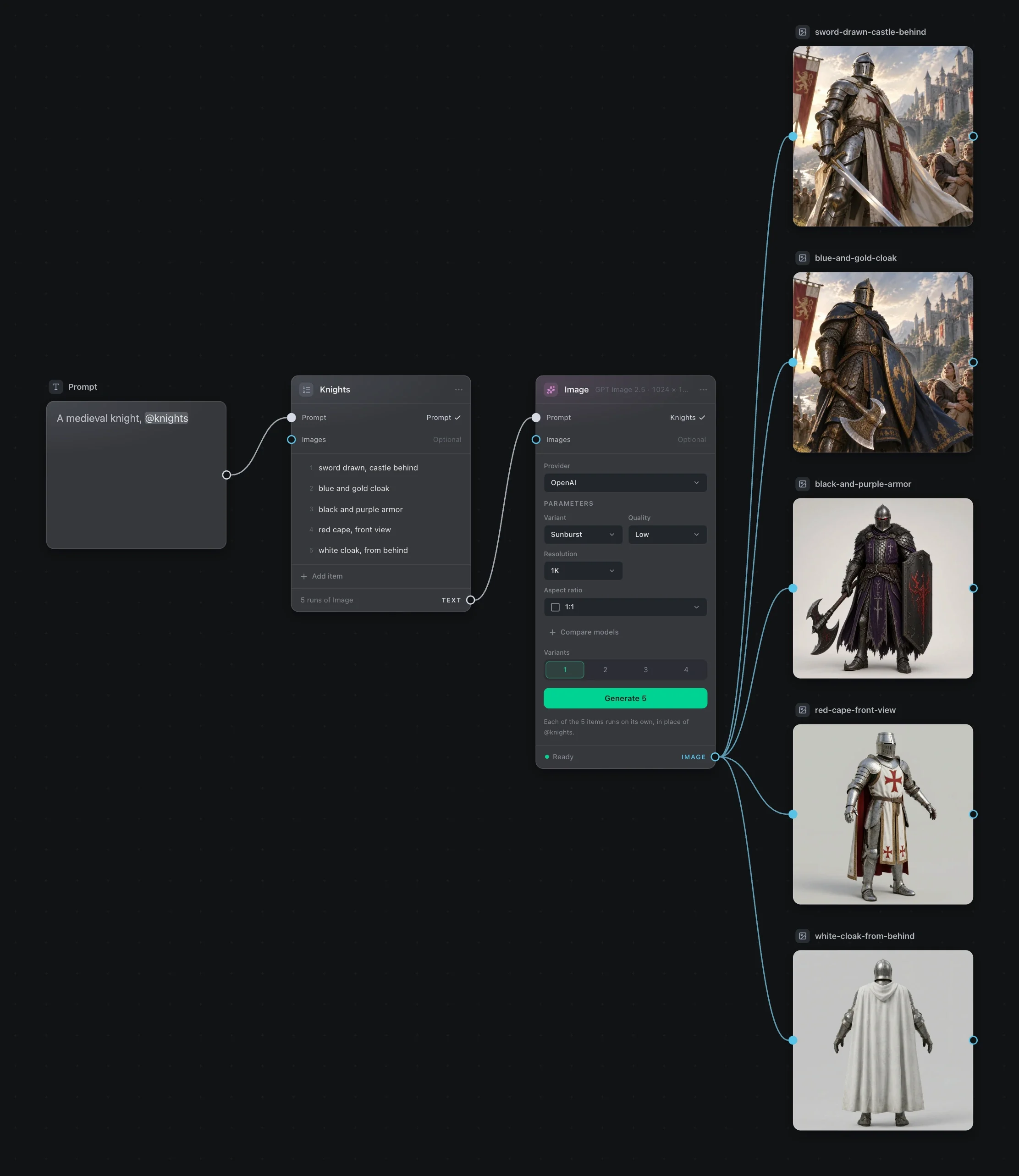
Put a List between a prompt and a generator, and one press runs once per row: a knight in five colors, or the same edit on ten pictures.
Your files
A project is a folder on your computer.
The board, the files it made and the wiki pages all sit in one folder that you own. Everything saves as you go, every edit can be undone, and moving a project means moving a folder.
Templar/the project
project.jsonthe board
assets/everything it made
wiki/pages, as Markdown
dark-knight.md
blender/scenes you opened in Blender
Agents
Bring yourown agent.
Connect Claude Code, Codex or anything else that speaks MCP, and let it work on the open project with you. It sees the same board, adds nodes, wires them up and runs them while you watch.
There is a terminal under the canvas for exactly this. Pick how much the agent may do, start it, and ask for what you want in plain words. Its edits undo like your own.
Access
Read only
It can look at the board and tell you what it sees.
Access
Limited
It reads and edits your projects, but can’t run models, so it never costs anything.
Access
Full access
It reads and edits your projects, and runs models on your provider account. Once what it has spent today reaches its daily budget, which starts at $20, it asks you before running more.
Sync · Coming soon
Your projects onevery computer.
Sync keeps the projects you choose, your gallery and your own voices in private cloud storage, so they follow you from computer to computer. Your project folders stay on your computer and keep working offline.